System Prerequisites
The system requirements for running Orepath products can vary based on the complexity of the mining operations and the volume of data involved. While we can provide general recommendations, the precise hardware needs may differ. To determine if your specific setup is suitable, we recommend reviewing the table below, aswell as checking the GPU and drivers to evaluate suitability.
Minimum Specifications
| Component | Minimum | Recommended |
|---|---|---|
| Memory (RAM) | 8 GB | 64 GB |
| Operating System | Windows 10/11 x64 | Windows 10/11 x64 |
| Video Memory (VRAM) | 6 GB | 8 GB |
| Video Connection | HDMI, DisplayPort, DVI, VGA - USB not supported | HDMI, DisplayPort, DVI, VGA - USB not supported |
| Graphics Driver | Driver no more than 6 months old (OpenGL 4.6+) | Driver no more than 6 months old (OpenGL 4.6+) |
| Graphics Card (GPU) | Dedicated Nvidia or AMD GPU - less than two years old and 6GB dedicated memory. | Dedicated Nvidia or AMD GPU - less than two years old and 8GB dedicated memory. |
| Hard Drive | Solid State Drive with at least 50 GB Free | Solid State Drive with at least 50 GB Free |
| Network Connection | Consistent, reliable, high speed (>20 Mbps) connection to the Internet. | Consistent, reliable, high speed (>20 Mbps) connection to the Internet. |
Checking GPU and Drivers
Before installing the software, it’s important to confirm that the GPU is compatible and that the drivers are up to date. Follow the steps outlined below to check both.
1. Open Device Manager: Press Windows Key + X to open the Power User menu. Select Device Manager from the list.
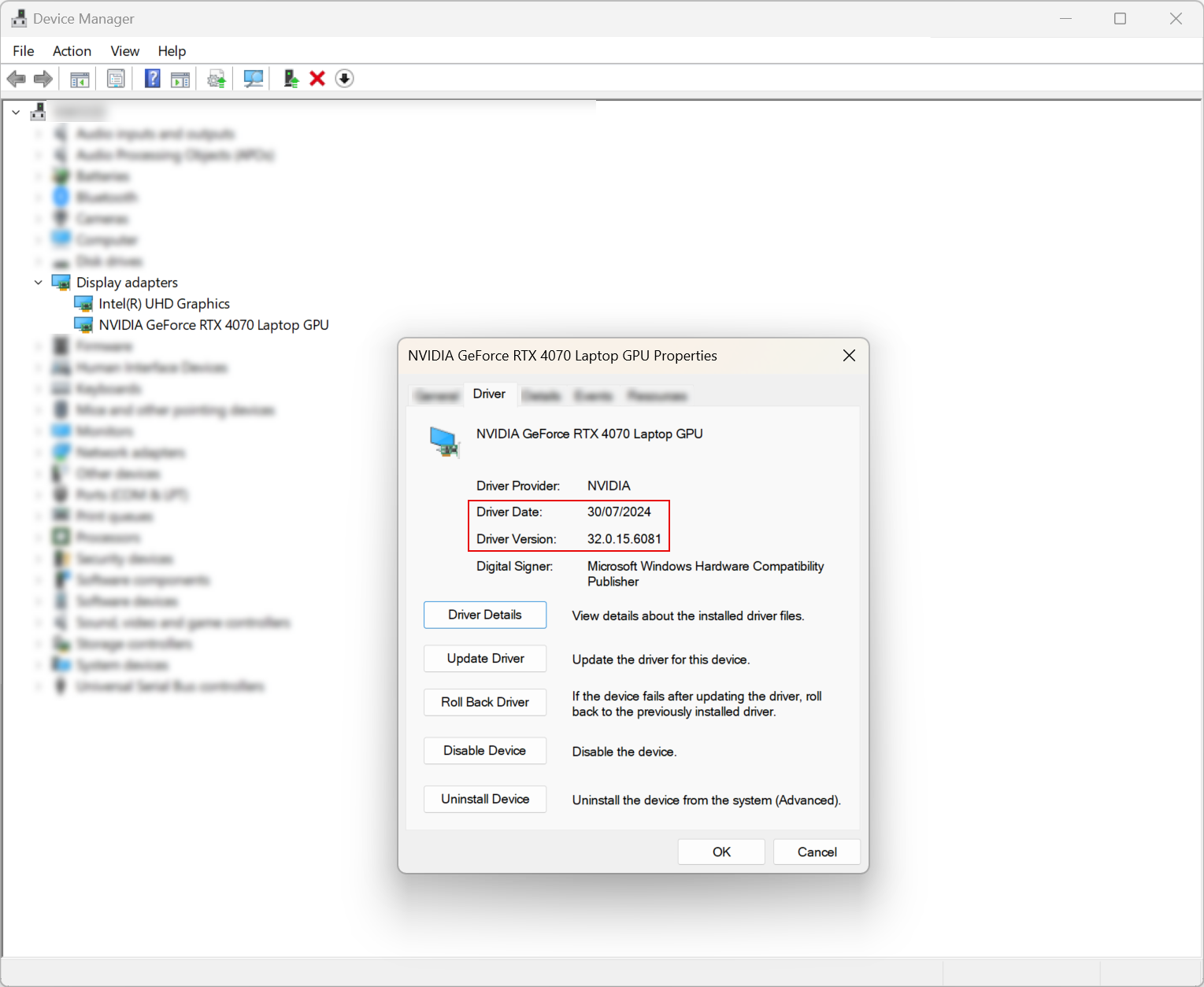
2. Locate Your Graphics Card: In Device Manager, expand the Display adapters category. This will show the graphics cards installed on your system.
3. View Graphics Card Details: Right-click on your graphics card listed under Display adapters. Select Properties from the context menu.
If the only graphics card listed is Intel® UHD Graphics, please note that this is an integrated GPU and will not be sufficient for running the software. A dedicated graphics card is required to ensure proper functionality and performance.
4. Check Driver Information: In the Properties window, navigate to the Driver tab. Here, you can see the Driver Version, Driver Date, and other related information.
5. Update Drivers (Optional): If you need to update your drivers, click the Update Driver button on the Driver tab. Follow the prompts to search for updated drivers automatically or browse for them manually.