Overview
The Simulation tab contains several key components, each numbered in the image below.
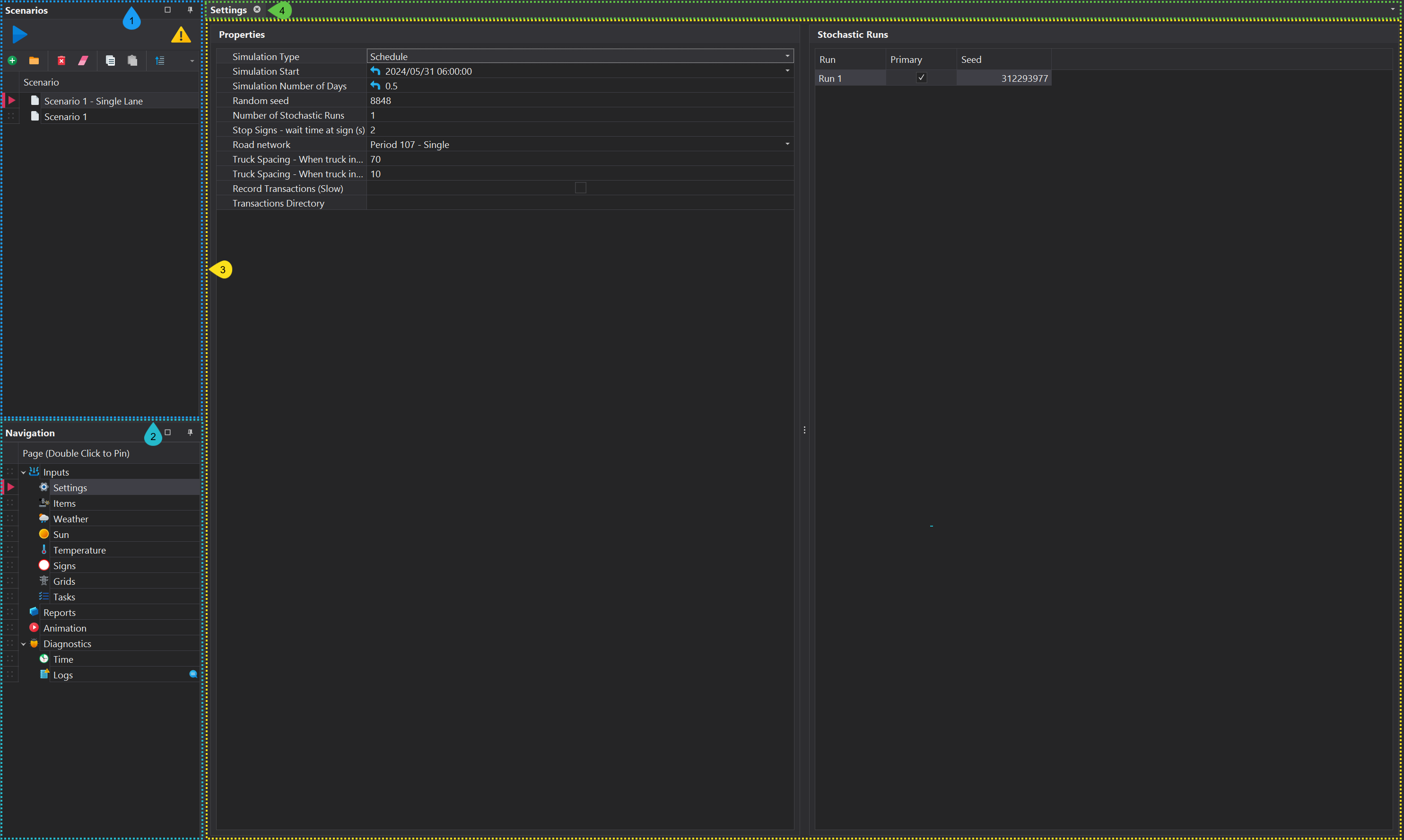
1. Scenarios Panel
The software allows multiple simulation scenarios to be created and tested. This is managed through the Scenarios panel, which includes the following controls:
Tool Bar
A number of tools are available for managing scenarios in the project. These iclude the functionaliry for creating, deleting, exporting and sorting. More infomration on the functioanlty in the toolbar can be found here.

The large yellow exclamation mark ⚠️ in the Scenarios panel indicates that the selected scenario has been modified since its last run. Clicking on the exclamation mark will re-run the scenario.
Scenario Tree
The Scenario tree displays the hierarchical structure of files currently imported into the project. Scenarios can be nested within folders, and folders can be nested within other folders, providing an effective way to organise and manage large numbers of scenarios.
The selected scenario will be highlighted and contain a red indicator arrow on the left hand side.
Scenarios can be repositioned by dragging and dropping them within the scenario tree, offering a straightforward method for reorganizing your project structure. This drag-and-drop functionality is consistently available across all tree controls throughout the software
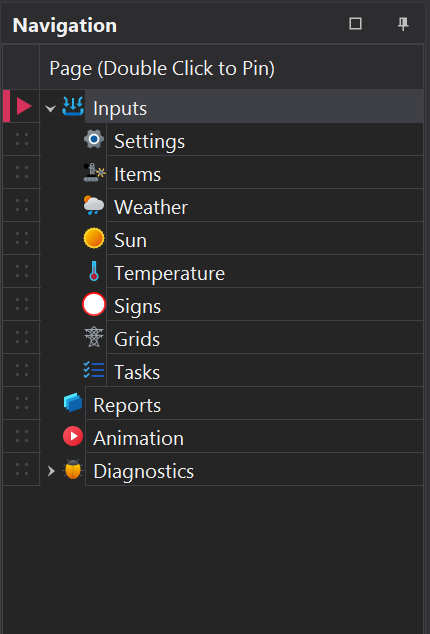
2. Navigation Panel
The Navigation panel contains a tree structure that houses the input and output pages for the selected simulation. Input pages are listed under the Inputs node in the tree, while outputs include the Animation and Reports pages.
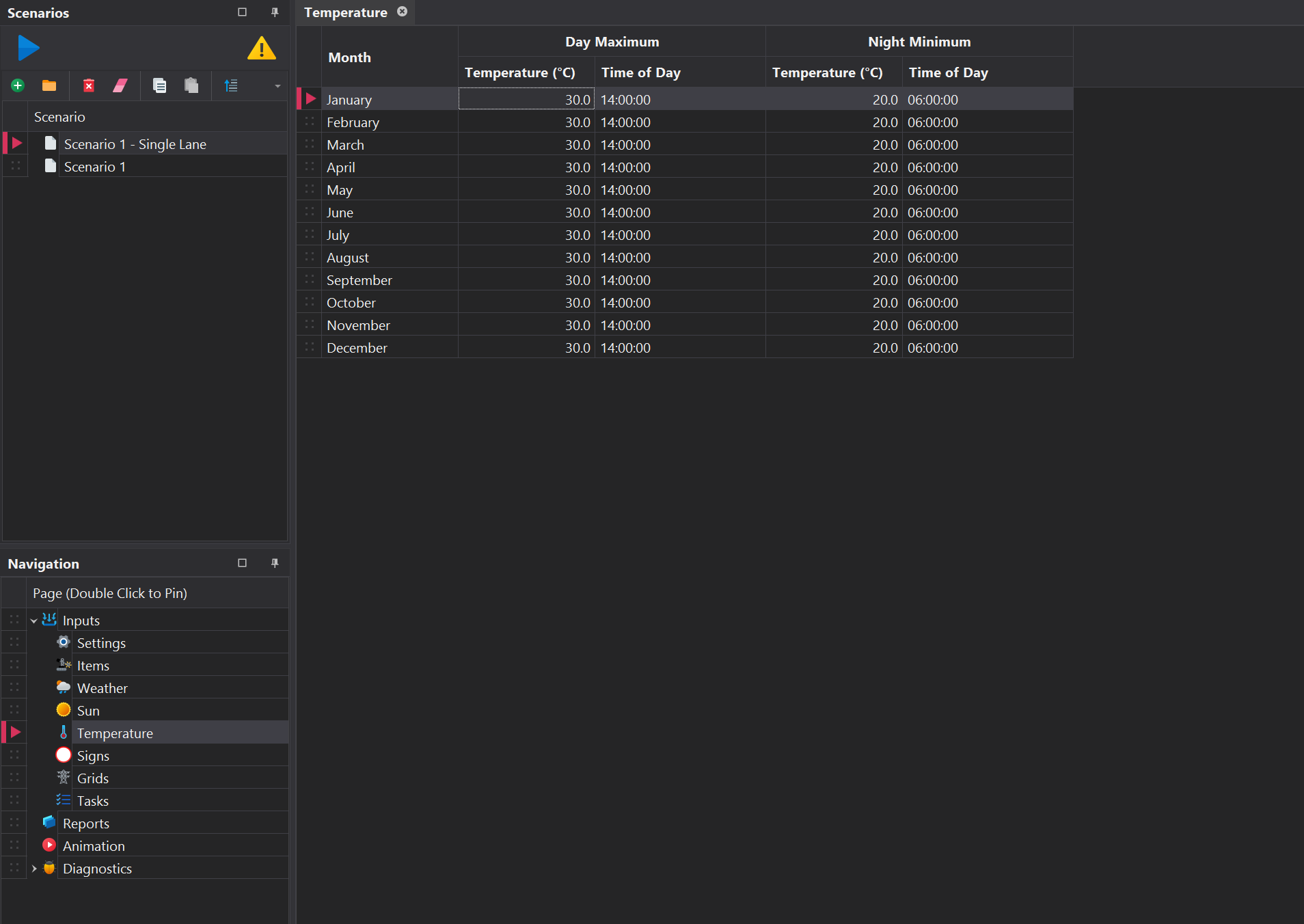
3. View Panel
The View Panel displays the content of the selected page. Selecting a different page will update the View Panel accordingly.
4. Pinned Page Bar
The Pinned Page Bar displays the currently selected page, along with any pinned pages that are added when a node is double-clicked.
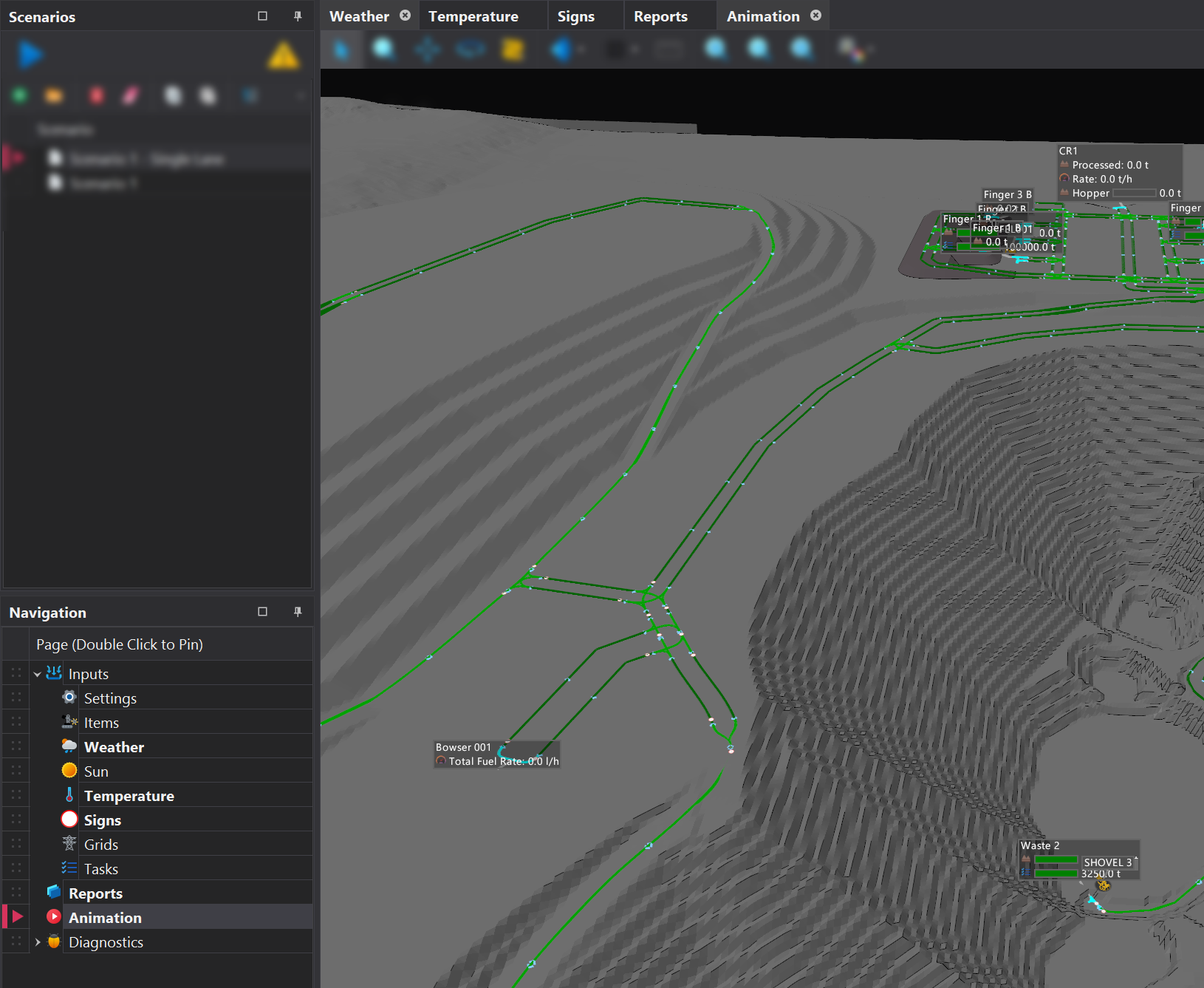
If a page has been pinned to the bar, it can be unpinned by either clicking the cross in the top right corner of the tab or by double-clicking the page again in the tree list.