Import Assets
Creating new Project
Download the Asset files from the link below.
Launch Orepath Elements, create a working folder for the exercise project and extract the contents of the Project ML Assets folder. Create a new OPMS project.
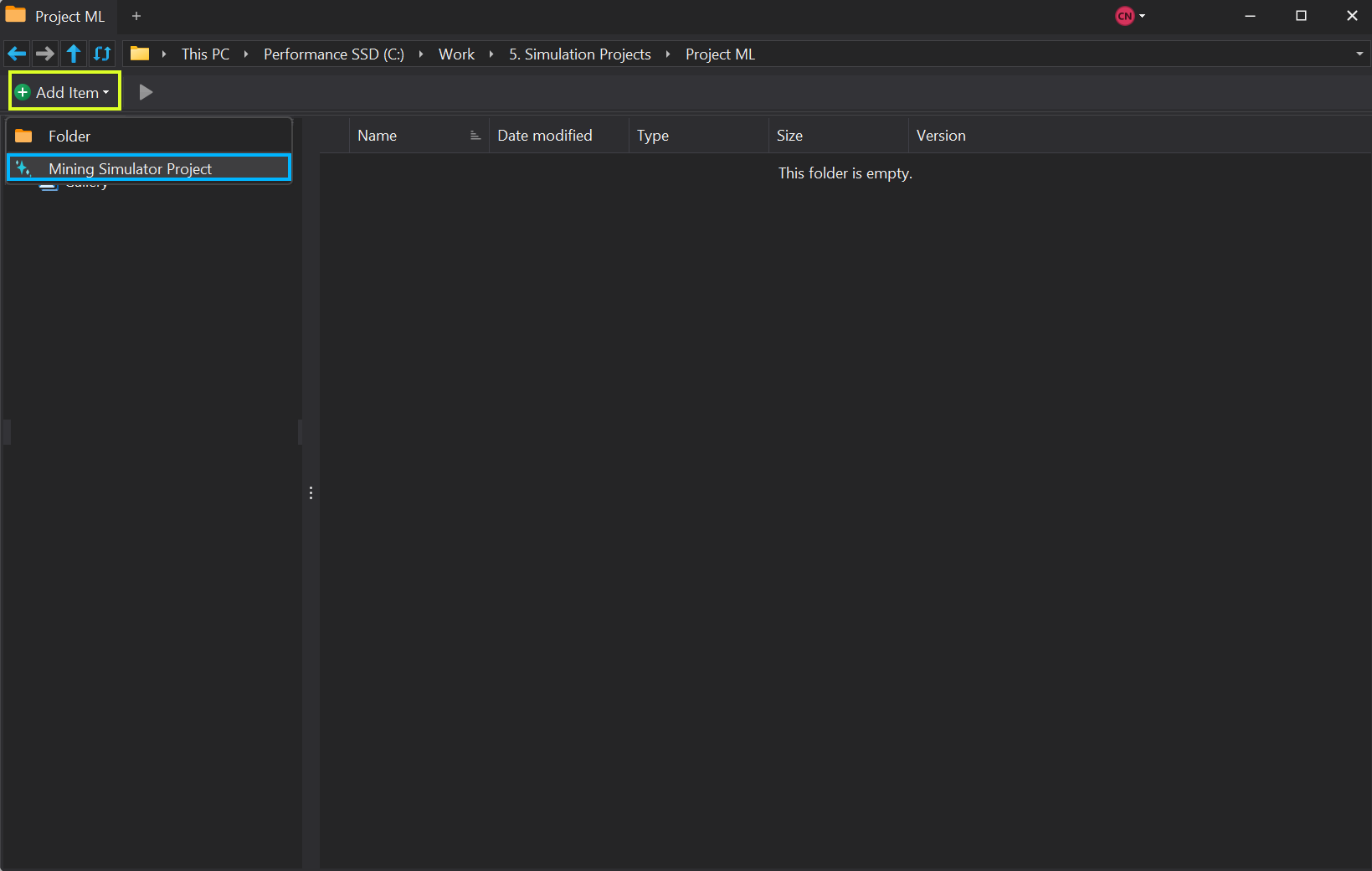
Adding Assets
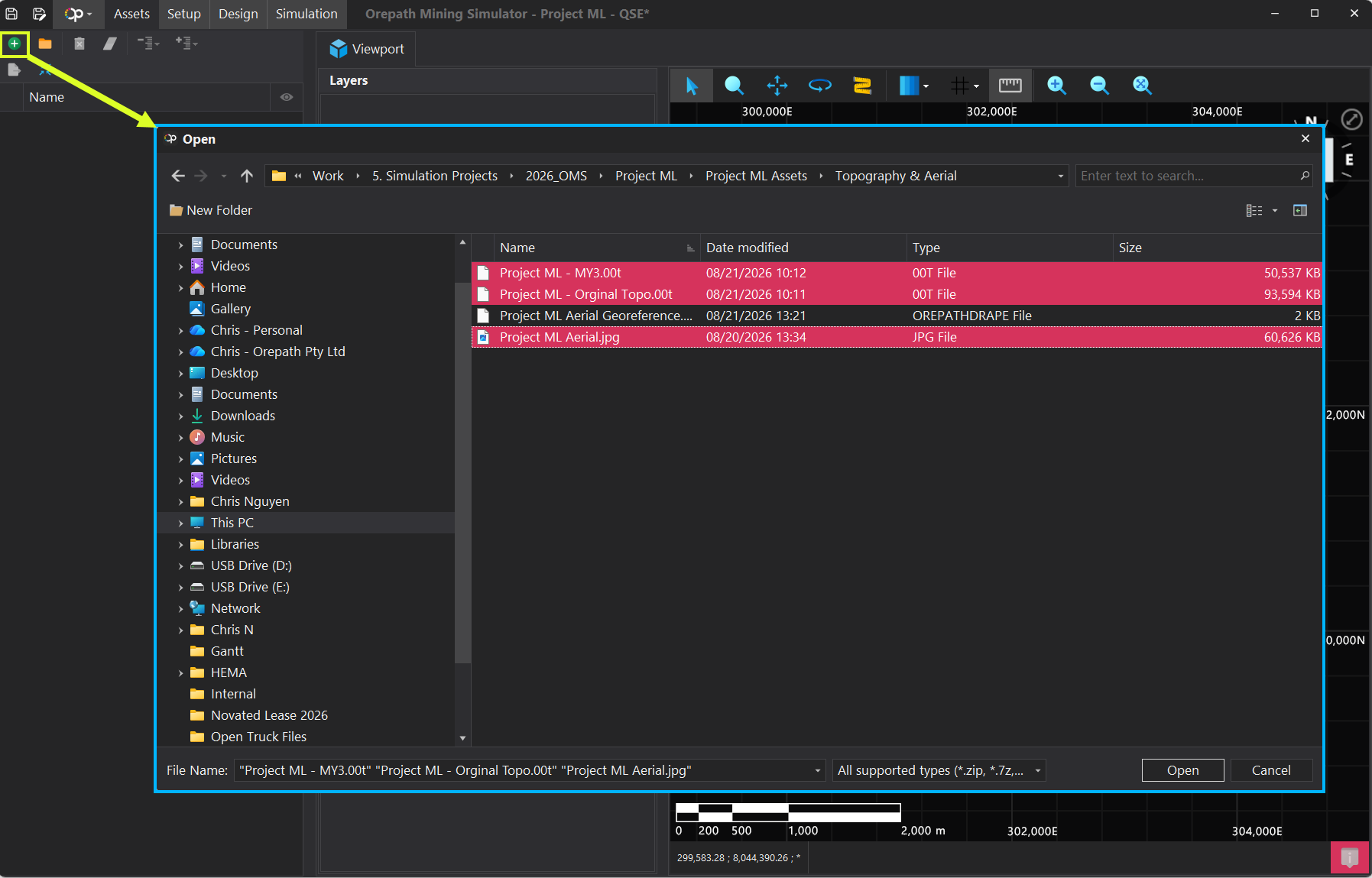
In the Orepath Mining Simulator, navigate to the Asset Tab.
- Click on the Add Item icon in the left side pane.
- Browse to the Project ML Assets folder.
- Select the Aerial Image and the two .00t topo files.
- Click on Open.
Add Imagery to Topography
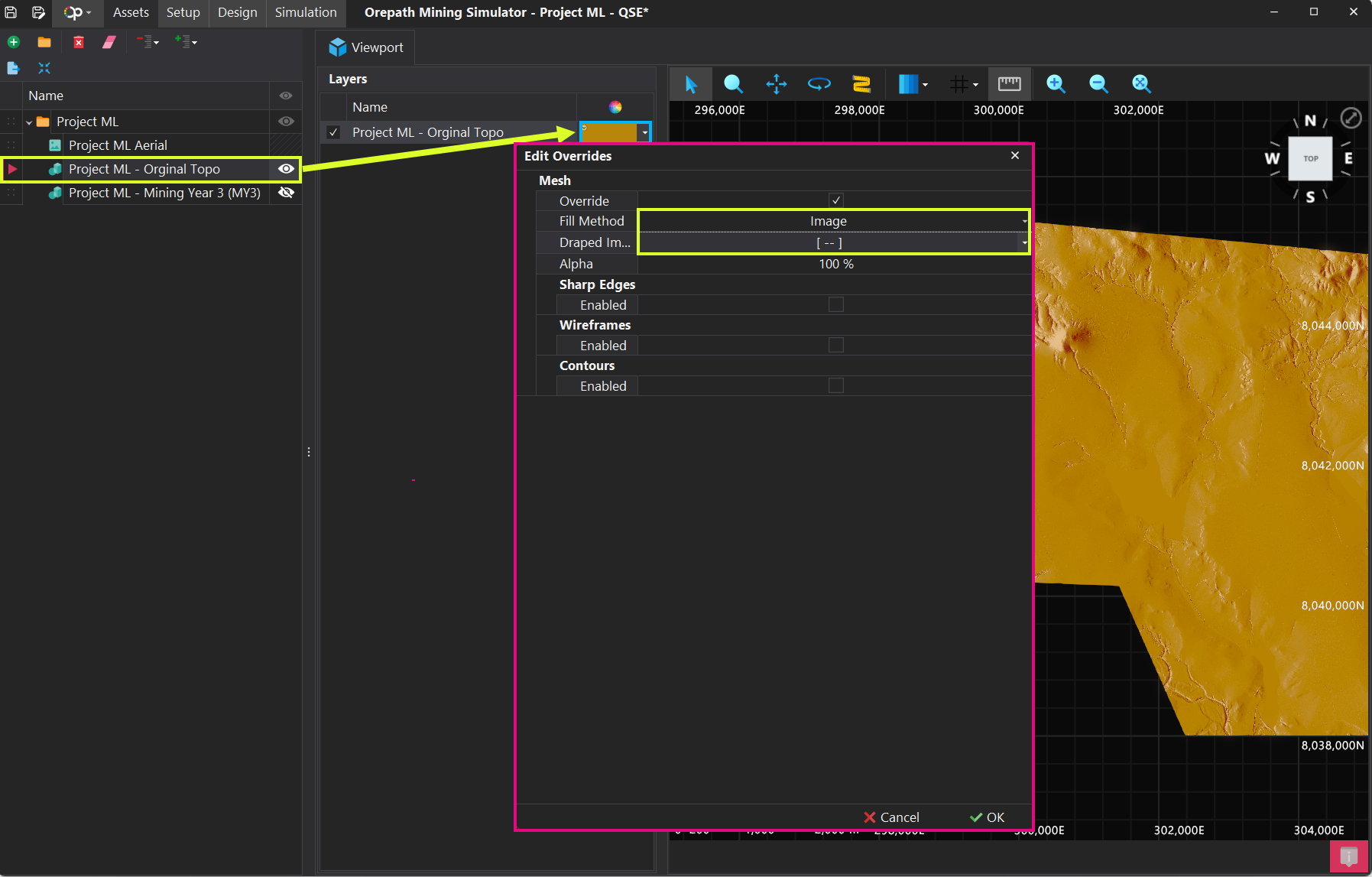
- Click on Project ML - Orginal Topo
- Click on the colour swatch to open the Edit Overrides window.
- Enable Overrides by checking the overrides box.
- Click on Fill Method dropdown box and select the Image option.
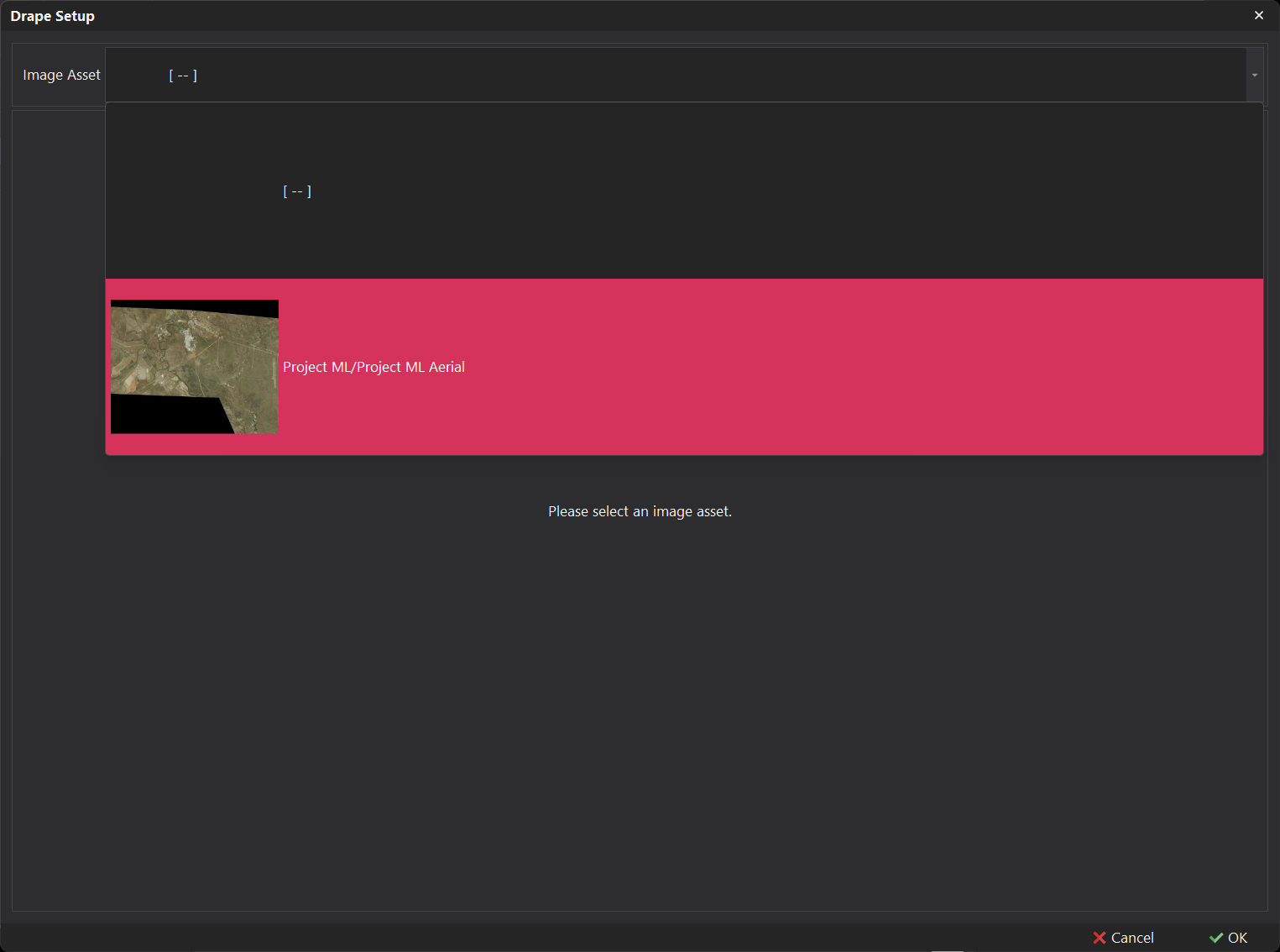
- Click on the Draped Image dropdown box to open the Drape Setup.
- In the Drape Setup, select the Project ML Aerial Image.
Georeferencing Aerial Image to Topography
Once the Project ML Aerial Image has been selected in the Drape Setup:
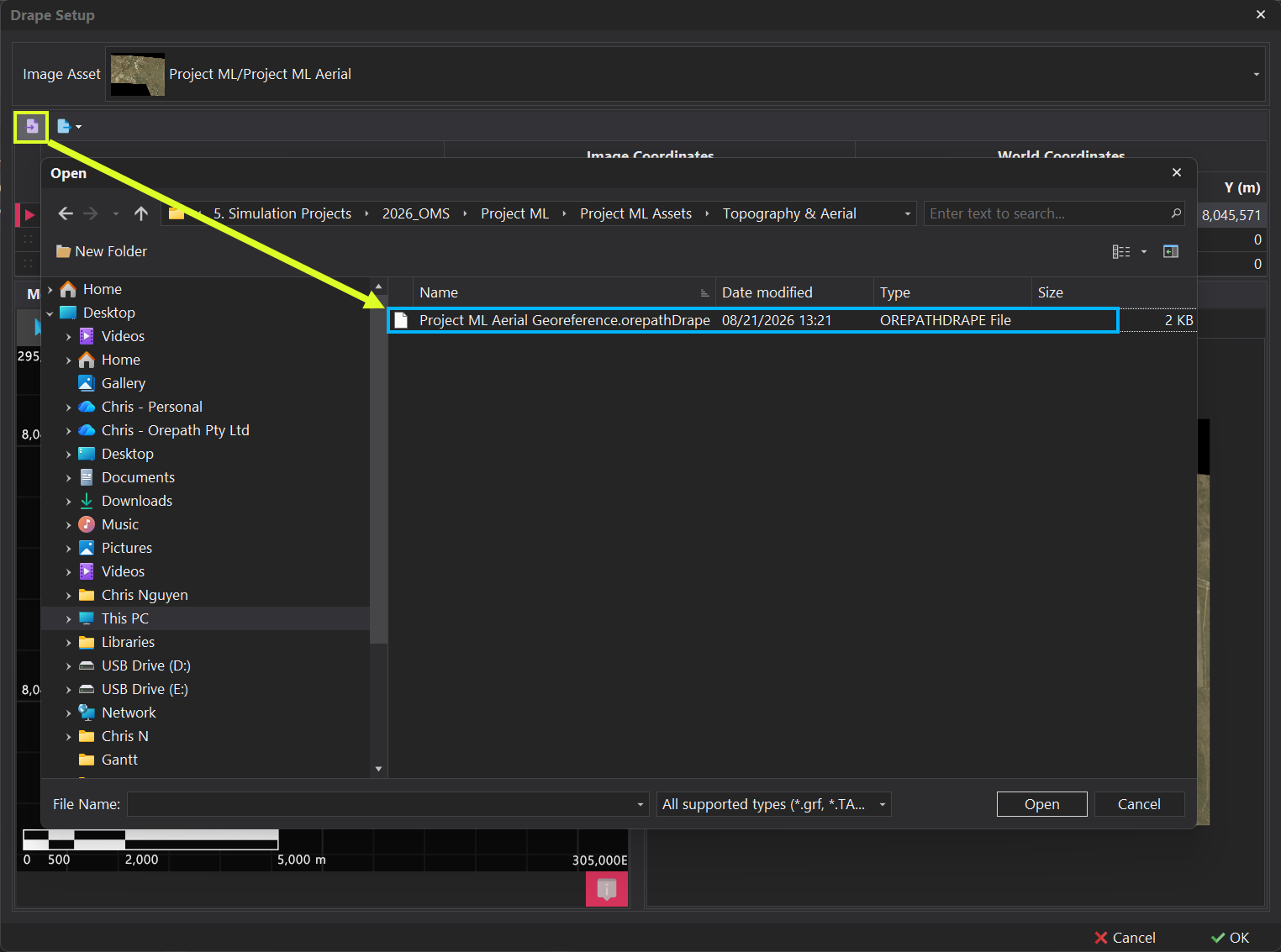
- Click on the Import button.
- Browse to the Project ML Assets folder and select the orepathDrape file and click on the Open button.
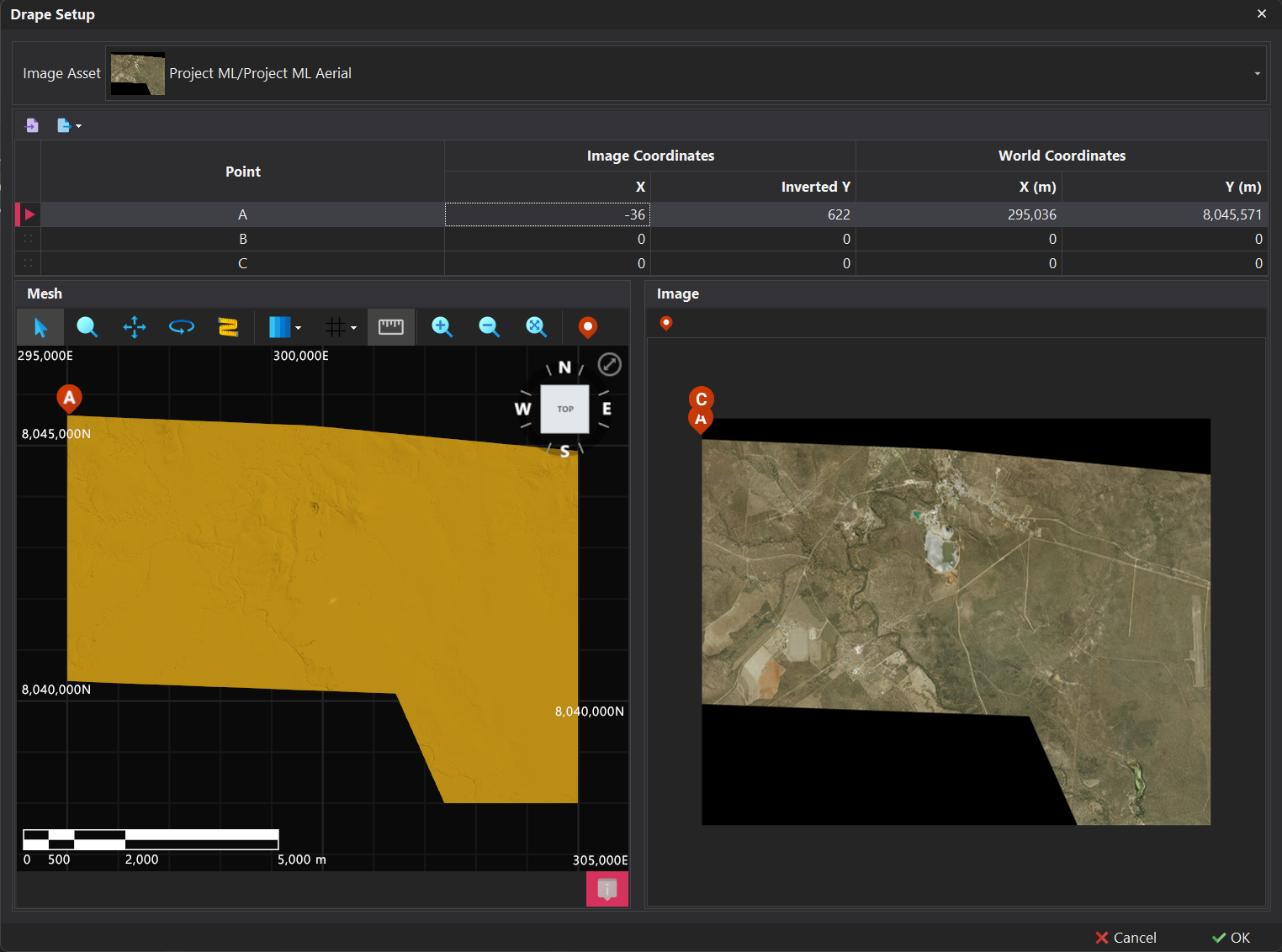
Do the georeferencing manually by highlighting the A, B or C rows and assign the corresponding pins so that the image on the right matches with the wireframe on the left.
Go through each pin sequentially so that the 3 points cover as much of the extents of the image/wireframe as possible.
Adding Pit and Dump Assets
Once the topographies have been added, repeat the process to add the wireframes in the Stage Pit and Dump folder. Note that imagery does not need to be draped on the pit and dump wireframes.
This will be used to assist with allocating Source and Destination points in the setup.
Once the 3 pits and 2 dumps have been added to the Assets tab, experiment with changing the colours for the pit and dump wireframes to distinguish them from the topography.
Once all assets have been added, click on the Setup tab in the top toolbar to proceed with the exercise.